
Introduction to Apache HTTP Server in the Linux Ecosystem
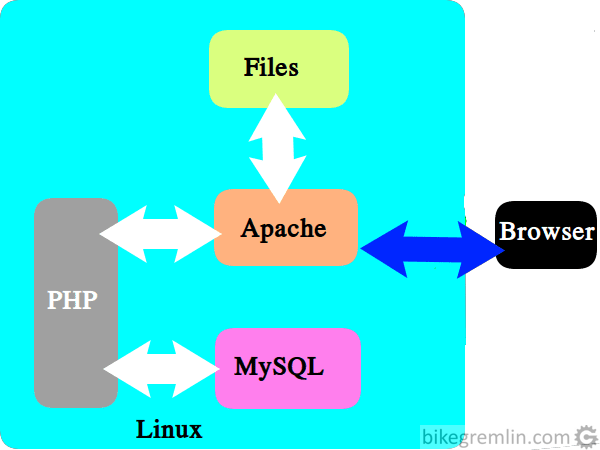
For decades, the Apache HTTP Server (commonly referred to as simply “Apache”) has been the cornerstone of the World Wide Web. As an open-source web server software, it played a pivotal role in the initial growth of the internet and continues to be a dominant force in Linux Administration today. While newer technologies like Nginx have gained popularity for specific use cases, Apache remains the gold standard for flexibility, module availability, and widespread support. It is the “A” in the famous LAMP stack (Linux, Apache, MySQL, PHP/Python/Perl), making it an essential skill for anyone pursuing a career in System Administration or Linux DevOps.
Apache is developed and maintained by an open community of developers under the auspices of the Apache Software Foundation. This ensures that the software remains free, transparent, and highly secure. For a Linux Server administrator, understanding Apache goes beyond simple installation; it requires a deep dive into Linux Networking, File Permissions, and system optimization. Whether you are managing a Debian Linux cluster, a Red Hat Linux enterprise environment, or a simple Ubuntu Tutorial blog, the principles of configuring and hardening Apache remain a critical competency.
In this comprehensive guide, we will explore the architecture of Apache, how to deploy it across various Linux Distributions, and how to leverage Python Scripting and Bash Scripting to automate its maintenance. We will also touch upon modern deployment methods involving Linux Docker containers and Kubernetes Linux orchestration to bridge the gap between traditional hosting and modern cloud infrastructure.
Section 1: Installation and Core Configuration Concepts
The first step in mastering Apache is understanding how it interacts with the underlying Linux Kernel and operating system. Apache functions as a daemon (service) that listens on specific network ports (usually 80 for HTTP and 443 for HTTPS) to serve content. The installation process varies slightly depending on your package manager, specifically whether you are using an RPM-based system like CentOS/Fedora Linux or a Debian-based system like Ubuntu.
Installation and Service Management
To install Apache, you will typically use the Linux Terminal. It is best practice to update your package repositories before installation to ensure you are getting the latest security patches. Below is a comprehensive Bash Scripting example that detects the OS family and installs the appropriate package (apache2 for Debian/Ubuntu or httpd for RHEL/CentOS).
#!/bin/bash

# Apache Installation Script for Linux Servers
# Checks for root privileges
if [ "$EUID" -ne 0 ]; then
  echo "Please run as root"
  exit
fi

# Detect OS and Install
if [ -f /etc/debian_version ]; then
    echo "Detected Debian/Ubuntu System..."
    apt-get update -y
    apt-get install apache2 -y
    systemctl start apache2
    systemctl enable apache2
    echo "Apache2 installed and service started."
elif [ -f /etc/redhat-release ]; then
    echo "Detected RHEL/CentOS/Fedora System..."
    yum install httpd -y
    systemctl start httpd
    systemctl enable httpd
    echo "HTTPD installed and service started."
else
    echo "Unsupported Linux Distribution."
    exit 1
fi

# Check Status
systemctl status apache2 || systemctl status httpd
Understanding the Directory Structure
Once installed, navigating the configuration files is the next challenge. In Linux System Administration, knowing where files live is half the battle.
- Debian/Ubuntu: The configuration root is
/etc/apache2/. The main file isapache2.conf. It uses a system ofsites-availableandsites-enableddirectories, linked via symlinks, to manage Virtual Hosts. - RHEL/CentOS: The configuration root is
/etc/httpd/. The main file ishttpd.confusually located inconf/. Virtual hosts are often placed inconf.d/.
Regardless of the distribution, you will frequently use Linux Commands like ls -l to view file ownership and vim or nano to edit configurations. Proper Linux Permissions are vital here; configuration files should be owned by root, while the web content (usually in /var/www/html) should be readable by the Apache user (often www-data or apache).
Section 2: Implementing Virtual Hosts and Modules
One of Apache’s most powerful features is the ability to host multiple websites on a single Linux Server using a single IP address. This is achieved through Virtual Hosts. Furthermore, Apache’s functionality is extended through modules, allowing for features like URL rewriting, SSL encryption, and proxying.
Configuring a Virtual Host
A Virtual Host directive tells Apache how to handle requests for a specific domain name. This is where you define the document root (where the HTML/PHP files are stored) and specific log locations. Keeping logs separate for different sites is a Linux Administration best practice for easier debugging and System Monitoring.
Here is a standard Virtual Host configuration. In a production environment, you would place this in /etc/apache2/sites-available/example.com.conf.
    # Primary domain
    ServerName www.example.com
    ServerAlias example.com

    # Document Root: Where the website files live
    DocumentRoot /var/www/example.com/public_html

    # Admin email for server errors
    ServerAdmin [email protected]

    # Custom Log Locations - Essential for Linux Monitoring
    ErrorLog ${APACHE_LOG_DIR}/example.com_error.log
    CustomLog ${APACHE_LOG_DIR}/example.com_access.log combined

    # Directory Permissions

        Options -Indexes +FollowSymLinks
        AllowOverride All
        Require all granted
Managing Modules
Apache uses a modular architecture. To serve dynamic content or secure your site, you often need to enable specific modules. For example, mod_rewrite is essential for WordPress permalinks, and mod_ssl is required for HTTPS.
On Ubuntu or Debian Linux, you can use the a2enmod (Apache 2 Enable Module) command:
sudo a2enmod rewrite
sudo a2enmod ssl
sudo systemctl restart apache2
On CentOS or Red Hat Linux, modules are often loaded directly via the httpd.conf file or specifically dropped into the conf.modules.d directory. This difference highlights why understanding specific Linux Distributions is crucial for a System Admin.
Section 3: Advanced Techniques – Automation, Security, and Containers
In modern Linux DevOps environments, manually configuring servers is becoming less common. We rely on Linux Automation tools like Ansible or containerization with Linux Docker. Furthermore, security is paramount. A default Apache installation leaks information that can be useful to attackers.
Hardening Apache Security
Security involves multiple layers: Linux Firewall configuration (using iptables or ufw), SELinux policies, and Apache’s own configuration. You should always hide the Apache version and OS information from the HTTP headers to prevent targeted attacks based on known vulnerabilities.
Additionally, you must ensure Linux File System permissions are tight. Using Linux Users and groups effectively prevents a compromised web server from accessing sensitive system files. Below is a configuration snippet to harden the server headers.
# Security Hardening Configuration
# Place this in apache2.conf or httpd.conf

# Prevent Apache from broadcasting version number and OS
ServerTokens Prod
ServerSignature Off

# Prevent TRACE method (Cross Site Tracing attacks)
TraceEnable Off

# Set HttpOnly and Secure flags on cookies
Header edit Set-Cookie ^(.*)$ $1;HttpOnly;Secure

# X-XSS-Protection to prevent Cross-Site Scripting
Header set X-XSS-Protection "1; mode=block"

# Prevent Clickjacking
Header always append X-Frame-Options SAMEORIGIN
Log Analysis with Python
System Monitoring is critical. While tools like top command or htop show current resource usage, analyzing logs helps identify attack patterns. Python Scripting is an excellent tool for this. The following script parses Apache access logs to find IP addresses that are generating an excessive number of 404 errors, which often indicates a vulnerability scanner.
import re
from collections import Counter
import sys

def analyze_apache_log(log_file_path):
    # Regex to capture IP and Status Code
    log_pattern = re.compile(r'(\d{1,3}\.\d{1,3}\.\d{1,3}\.\d{1,3}).*?"\s(\d{3})\s')

    ip_counter = Counter()

    try:
        with open(log_file_path, 'r') as file:
            for line in file:
                match = log_pattern.search(line)
                if match:
                    ip_address = match.group(1)
                    status_code = match.group(2)

                    # Track IPs causing 404 errors
                    if status_code == '404':
                        ip_counter[ip_address] += 1

        print(f"--- Suspicious IPs (High 404 Count) ---")
        for ip, count in ip_counter.most_common(10):
            print(f"IP: {ip} - 404 Errors: {count}")

    except FileNotFoundError:
        print("Error: Log file not found.")
    except Exception as e:
        print(f"An error occurred: {e}")

if __name__ == "__main__":
    # Example usage: python3 log_analyzer.py /var/log/apache2/access.log
    if len(sys.argv) > 1:
        analyze_apache_log(sys.argv[1])
    else:
        print("Please provide the log file path.")
Apache in the Era of Docker and Kubernetes
Traditional Linux Server deployments are evolving into containerized microservices. Running Apache inside Linux Docker allows for consistent environments from development to production. This is a core concept in Linux Cloud computing (AWS, Azure). Instead of managing Linux Disk Management or LVM for the OS, you manage persistent volumes for the data.
Here is a Dockerfile example that creates a custom Apache image, copying local website files into the container. This approach is fundamental for Kubernetes Linux deployments.

# Use the official Apache image based on Debian
FROM httpd:2.4

# Maintainer info
LABEL maintainer="[email protected]"

# Update system packages within the container
RUN apt-get update && apt-get upgrade -y

# Copy custom configuration file
COPY ./my-httpd.conf /usr/local/apache2/conf/httpd.conf

# Copy website content to the document root
COPY ./public-html/ /usr/local/apache2/htdocs/

# Expose port 80
EXPOSE 80

# Start Apache in the foreground
CMD ["httpd-foreground"]
Section 4: Best Practices and Optimization
To ensure your Apache server can handle high traffic loads, you must tune the Multi-Processing Modules (MPM). Apache supports three main MPMs: Prefork, Worker, and Event.
MPM Configuration
- Prefork: Compatible with non-thread-safe libraries (like older PHP versions). It consumes more RAM because it spawns a separate process for each request.
- Worker: Uses threads, making it more memory efficient than Prefork.
- Event: The most modern and efficient MPM, designed to handle Keep-Alive connections efficiently. It is ideal for high-load environments.
For a modern setup, switching to MPM Event with PHP-FPM is recommended over using mod_php. This separates the web server logic from the PHP processing logic, improving stability and performance.
Backup and Redundancy
No Linux Tutorial is complete without mentioning backups. You should regularly backup your configuration files (/etc/apache2) and your web data (/var/www). Using Linux Backup tools like rsync or tar in a cron job is standard practice. Furthermore, consider Linux Disk Management strategies like RAID to protect against physical drive failure. For database-driven sites using MySQL Linux or PostgreSQL Linux, ensure you are dumping the databases properly before backing up the file system.
Monitoring and Maintenance
Use Linux Utilities to keep an eye on your server.
htop: Visualizes CPU and RAM usage.iotop: Checks disk I/O usage (useful if logs are writing heavily).netstat -tulnp: Verifies which ports Apache is listening on.
Regularly updating your Linux Kernel and Apache packages via apt upgrade or yum update is the single most effective security measure you can take.
Conclusion
Mastering the Apache HTTP Server is a journey that touches upon almost every aspect of Linux Administration. From the initial installation via the Linux Terminal to writing Bash Scripting for automation, and analyzing logs with Python, Apache serves as a gateway to understanding the deeper mechanics of the web. While the landscape is shifting towards Container Linux and Linux Cloud technologies like AWS Linux and Azure Linux, the fundamental concepts of HTTP, virtual hosting, and server security remain constant.
As you continue your journey, consider exploring how Apache interacts with other components. Try setting up a reverse proxy with Nginx, automating your deployment with Ansible, or migrating your static configuration to a dynamic Kubernetes cluster. The skills you build managing Apache are transferable, robust, and essential for any serious IT professional.


