
In an era dominated by graphical user interfaces and touchscreens, the Linux Terminal remains the unshakeable foundation of modern computing. For developers, system administrators, and DevOps engineers, the command line interface (CLI) is not merely a relic of the past; it is the ultimate instrument of precision and control. Whether you are managing a fleet of cloud servers running Ubuntu or CentOS, configuring a Raspberry Pi for home automation, or diving into the depths of the Linux Kernel, the terminal provides a distraction-free environment where efficiency reigns supreme.
The allure of the terminal lies in its raw power. It strips away the abstraction layers of a GUI, allowing users to interact directly with the operating system. From Red Hat Linux enterprise environments to the minimalist approach of Arch Linux, the skills learned in the terminal are universal. This guide serves as a comprehensive deep dive into the Linux ecosystem, covering essential shell scripting, system administration, security protocols, and the integration of modern DevOps tools like Docker and Ansible.
The Foundation: Shell Scripting and Automation
At the heart of the Linux Terminal experience is the shell. While there are many flavors, such as Zsh or Fish, Bash (Bourne Again SHell) remains the industry standard for Linux Scripting. Mastery of Bash is essential for automating repetitive tasks, a core tenet of efficient System Administration. By writing scripts, you transform complex sequences of commands into executable files that can be scheduled, shared, and version-controlled.
Variables, Loops, and Conditionals
A robust shell script acts as the glue between various Linux Utilities. It leverages variables to store data, loops to process files in bulk, and conditionals to make decisions based on system states. For instance, a system administrator might need to back up specific directories daily but only if the disk usage is below a certain threshold. This requires interacting with the Linux File System and understanding Linux Disk Management concepts.
Below is a practical example of a Bash script designed to automate system backups. It utilizes standard tools like tar for archiving and checks for directory existence to prevent errors. This script demonstrates the use of variables, conditionals, and exit codes—vital components of Linux Automation.
#!/bin/bash

# Configuration Variables
BACKUP_SRC="/var/www/html"
BACKUP_DEST="/mnt/backup_drive"
DATE=$(date +%Y-%m-%d-%H%M%S)
ARCHIVE_NAME="web_backup_$DATE.tar.gz"
LOG_FILE="/var/log/backup_script.log"

# Function to log messages
log_message() {
    echo "[$(date '+%Y-%m-%d %H:%M:%S')] $1" >> "$LOG_FILE"
}

# Check if the source directory exists
if [ ! -d "$BACKUP_SRC" ]; then
    log_message "CRITICAL: Source directory $BACKUP_SRC does not exist."
    exit 1
fi

# Check if destination exists, if not create it
if [ ! -d "$BACKUP_DEST" ]; then
    log_message "WARNING: Destination not found. Creating $BACKUP_DEST."
    mkdir -p "$BACKUP_DEST"
fi

# Perform the backup using tar
# c = create, z = gzip, f = file
log_message "Starting backup of $BACKUP_SRC..."
tar -czf "$BACKUP_DEST/$ARCHIVE_NAME" "$BACKUP_SRC" 2>/dev/null

# Verify the operation status
if [ $? -eq 0 ]; then
    log_message "SUCCESS: Backup created at $BACKUP_DEST/$ARCHIVE_NAME"

    # Optional: Delete backups older than 7 days to save space
    find "$BACKUP_DEST" -type f -name "web_backup_*.tar.gz" -mtime +7 -exec rm {} \;
    log_message "Cleanup complete: Old backups removed."
else
    log_message "ERROR: Backup failed."
    exit 1
fi
This script touches upon several critical areas. It manages Linux Permissions (ensuring the script can read the source and write to the destination), handles Linux Backup strategies, and interacts with the file system. Understanding the exit status ($?) is crucial for error handling in any Linux Tutorial.
System Administration with Python and Monitoring Tools
While Bash is excellent for file manipulation and running commands, Python Scripting has become a dominant force in Linux System Administration and Linux DevOps. Python offers a more structured approach to complex logic, data parsing, and API interactions. It bridges the gap between simple shell scripts and full-scale software development.
Advanced Monitoring and Resource Management
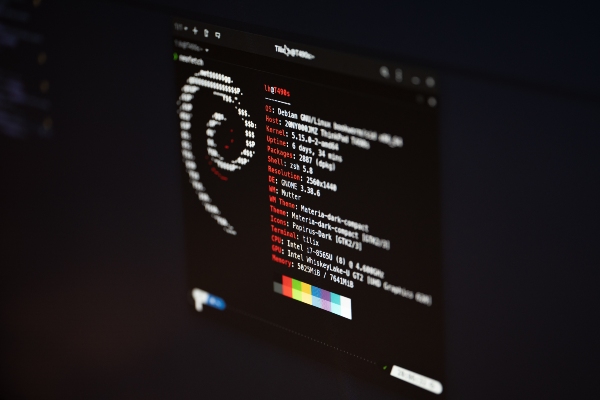
Effective System Monitoring goes beyond occasionally running the top command or the more visually appealing htop. It involves programmatic checks of CPU load, memory usage, and disk I/O. In a professional environment, such as managing AWS Linux or Azure Linux instances, you need automated alerts before a server crashes.
Python’s standard libraries allow administrators to interact with the OS deeply. The following example demonstrates a Python System Admin script that monitors disk usage and logs a warning if space runs low. This type of automation is often deployed via Cron jobs on Debian Linux or Fedora Linux servers.
#!/usr/bin/env python3
import shutil
import smtplib
from email.mime.text import MIMEText
import socket
import sys

# Configuration
THRESHOLD = 20  # Alert if free space is less than 20%
PARTITION = "/"
ADMIN_EMAIL = "admin@example.com"
HOSTNAME = socket.gethostname()

def check_disk_usage(path):
    """
    Returns the percentage of free disk space.
    """
    total, used, free = shutil.disk_usage(path)
    percent_free = (free / total) * 100
    return percent_free

def send_alert(free_space):
    """
    Sends an email alert using local SMTP (Postfix/Sendmail).
    """
    msg_content = f"WARNING: Low disk space on {HOSTNAME}.\nFree space on {PARTITION}: {free_space:.2f}%"
    msg = MIMEText(msg_content)
    msg['Subject'] = f"Disk Space Alert: {HOSTNAME}"
    msg['From'] = f"root@{HOSTNAME}"
    msg['To'] = ADMIN_EMAIL

    try:
        # Assumes a local MTA like Postfix is running on localhost
        with smtplib.SMTP('localhost') as server:
            server.send_message(msg)
            print("Alert email sent successfully.")
    except Exception as e:
        print(f"Failed to send email: {e}")

def main():
    try:
        free_percent = check_disk_usage(PARTITION)
        print(f"Disk check: {free_percent:.2f}% free on {PARTITION}")

        if free_percent < THRESHOLD:
            print("Threshold breached. Sending alert...")
            send_alert(free_percent)
        else:
            print("Disk space is within normal limits.")

    except FileNotFoundError:
        print(f"Error: Partition {PARTITION} not found.")
        sys.exit(1)

if __name__ == "__main__":
    main()
This script highlights the versatility of Python Automation. It can easily be expanded to check Linux Database status (like MySQL Linux or PostgreSQL Linux connectivity) or verify that a Linux Web Server (Apache or Nginx) is responding to requests.
Advanced Techniques: DevOps, Networking, and Low-Level Control
As we move into the realm of Linux DevOps, the terminal becomes the cockpit for orchestration tools. Technologies like Linux Docker and Kubernetes Linux are almost exclusively managed via CLI. Understanding Container Linux principles is mandatory for modern infrastructure.
Infrastructure as Code and Configuration Management
Tools like Ansible allow you to define the state of your Linux Server in code. Instead of manually SSH-ing into a server and running apt-get install, you write a playbook. This ensures consistency across Linux Distributions. Below is a YAML snippet for an Ansible playbook that configures a web server. While this is YAML, it is executed via the terminal and relies on underlying Linux subsystems.
---
- name: Configure Web Server
  hosts: webservers
  become: yes  # Use sudo privileges

  tasks:
    - name: Ensure Nginx is installed
      apt:
        name: nginx
        state: present
        update_cache: yes
      when: ansible_os_family == "Debian"

    - name: Start and enable Nginx service
      service:
        name: nginx
        state: started
        enabled: yes

    - name: Deploy custom index.html
      copy:
        src: files/index.html
        dest: /var/www/html/index.html
        owner: www-data
        group: www-data
        mode: '0644'

    - name: Allow HTTP traffic via UFW
      ufw:
        rule: allow
        port: '80'
        proto: tcp
This snippet automates Linux Networking configurations (firewall rules) and File Permissions (ownership and mode). It abstracts the complexity of Linux Commands into a declarative format.
System Programming with C
To truly understand the Linux Kernel, one must look at C Programming Linux. The kernel and most core Linux Tools are written in C. Using GCC (GNU Compiler Collection), developers can write highly efficient system-level code. This is particularly relevant for embedded systems or high-performance computing.
Here is a simple C program that interacts with Linux signals, demonstrating System Programming concepts. It catches the SIGINT signal (Ctrl+C), which is a common way to interrupt processes in the terminal.
#include
#include
#include
#include

/* Signal Handler Function */
void handle_sigint(int sig) {
    printf("\nCaught signal %d (SIGINT). Exiting gracefully...\n", sig);
    // Perform cleanup tasks here (close files, free memory)
    exit(0);
}

int main() {
    // Register the signal handler
    signal(SIGINT, handle_sigint);

    printf("Running process (PID: %d)...\n", getpid());
    printf("Press Ctrl+C to stop this process.\n");

    // Infinite loop to simulate a daemon or long-running task
    while(1) {
        printf("Working...\n");
        sleep(2);
    }

    return 0;
}
Compiling this with gcc -o signal_test signal_test.c and running it shows how the OS communicates with processes. This knowledge is fundamental when debugging issues with Linux Monitoring tools or understanding why a service failed to stop correctly.

Best Practices and Terminal Optimization
Mastering the terminal isn't just about knowing commands; it's about optimizing your workflow. Whether you are using a high-end workstation or a portable, distraction-free terminal device, the environment should be tailored to your needs.
Security Hygiene
Linux Security is paramount. Always disable root login over SSH and use key-based authentication. Configure your Linux Firewall using iptables or firewalld to drop all incoming traffic by default, allowing only necessary ports (like 22 for SSH, 80/443 for web). Understanding SELinux (Security-Enhanced Linux) context is also critical for Red Hat-based systems to prevent privilege escalation attacks.
Productivity Tools: Vim and Tmux
For the ultimate distraction-free experience, mastering the Vim Editor is a game-changer. Vim allows for rapid text editing without ever touching a mouse. Combined with Tmux (Terminal Multiplexer) or Screen, you can manage multiple sessions within a single window. This is incredibly useful for Linux SSH sessions, allowing you to detach from a session and reattach later without losing your work.
Tips for Optimization:
- Aliases: Add shortcuts to your
.bashrcor.zshrcfor frequently used long commands. - LVM and RAID: Use Logical Volume Management (LVM) for flexible Linux Disk Management. It allows you to resize partitions on the fly.
- Regular Updates: Keep your Linux Distributions updated to patch security vulnerabilities in the Linux Kernel.
- Performance Tuning: Use
niceandreniceto prioritize critical processes during high load.
Conclusion
The Linux Terminal is a canvas for creativity and a fortress for control. From the simplicity of a Raspberry Pi project to the complexity of a Kubernetes cluster on the cloud, the command line unifies the computing experience. By mastering Bash Scripting, leveraging Python System Admin tools, and adhering to security best practices, you unlock the full potential of the operating system.
Whether you are a developer writing C Programming Linux code or a sysadmin managing Linux Users and permissions, the journey of learning never truly ends. Embrace the terminal, explore the depths of Linux Development, and continue to build, automate, and secure the digital world.


