
In the vast landscape of Linux System Administration and software development, few tools command as much respect—and occasionally fear—as the Vim Editor. While modern IDEs and newer terminal editors constantly emerge, Vim (Vi IMproved) remains the ubiquitous standard across Linux Distributions, from Ubuntu Tutorial environments to enterprise-grade Red Hat Linux servers. Whether you are a seasoned DevOps engineer managing Kubernetes Linux clusters or a student learning C Programming Linux, mastering Vim is not just a skill; it is a superpower that dramatically increases efficiency within the Linux Terminal.
Vim is installed by default on almost every Unix-based system, including Debian Linux, CentOS, Fedora Linux, and Arch Linux. Its lightweight footprint makes it the go-to tool for editing configuration files over Linux SSH sessions, managing Linux Docker containers, or tweaking Python Scripting files on a remote AWS Linux instance. This comprehensive guide will take you from the basic modes of Vim to advanced customization and automation, ensuring you can handle everything from simple text editing to complex System Programming tasks.
Section 1: Core Concepts and The Modal Philosophy
The primary barrier to entry for new users is Vim’s modal nature. Unlike standard editors like Notepad or Nano, Vim operates in distinct modes. Understanding these modes is critical for navigating the Linux File System and editing code effectively. The four primary modes are Normal, Insert, Visual, and Command-line.
Understanding Vim Modes
Normal Mode: This is the default mode. Here, keys act as commands for navigation and manipulation. You do not type text in this mode; you manipulate it. For example, pressing dd deletes a line, while u undoes the last action.
Insert Mode: Accessed by pressing i, a, or o. This mode behaves like a standard text editor where typing inserts characters.
Visual Mode: Accessed via v, this allows you to highlight text blocks for manipulation, similar to clicking and dragging with a mouse.
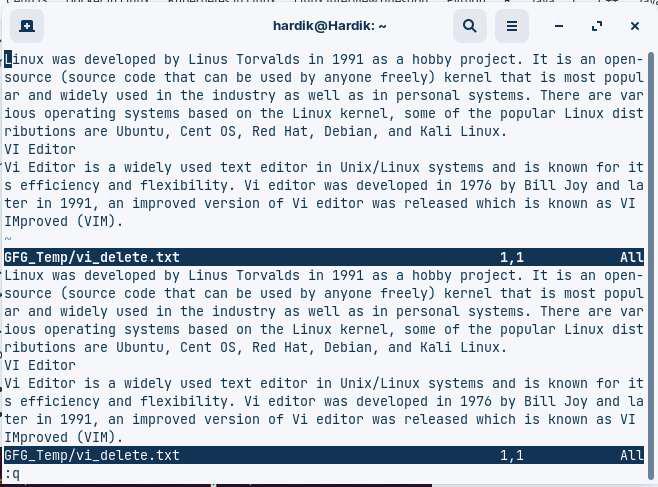
Command-line Mode: Accessed by pressing :. This is where you save files (:w), quit (:q), or run external Linux Commands.
Navigation and Text Objects
Efficiency in Vim comes from keeping your hands on the home row. Instead of arrow keys, we use h (left), j (down), k (up), and l (right). Beyond basic movement, Vim uses “text objects” to edit code syntactically. For example, when working on Python Automation scripts, you might want to change the contents inside a parenthesis.
Below is an example of a simple Python script you might edit. In Vim, to change the string inside the print function, you would place your cursor inside the quotes and type ci" (change inside quotes).
import os
import sys

def check_system_load():
    """
    A simple function to check load average
    Relevant for Linux Monitoring
    """
    try:
        # To edit the string below in Vim: ci"
        print("Checking system performance...")
        load1, load5, load15 = os.getloadavg()
        return load1
    except OSError:
        return None

if __name__ == "__main__":
    current_load = check_system_load()
    print(f"Current 1-minute load: {current_load}")
Mastering these text objects allows you to edit Bash Scripting files or Ansible YAML configurations significantly faster than using a mouse. This is particularly useful when configuring Linux Firewall rules using iptables or editing SELinux policies where precision is key.
Section 2: Implementation and Configuration (.vimrc)
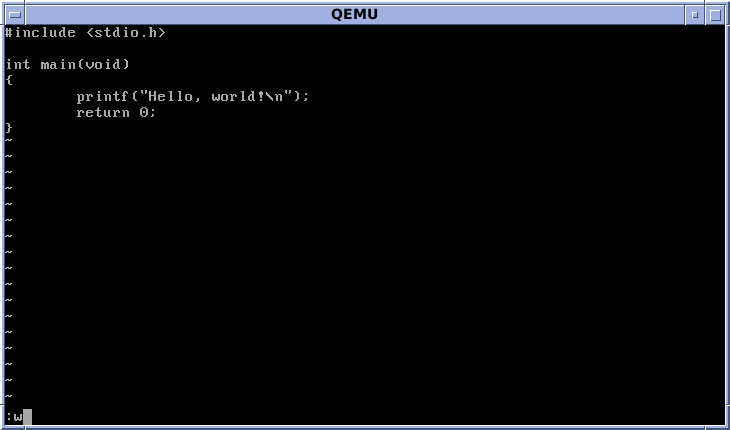
Out of the box, Vim is powerful but bare-bones. To make it a suitable environment for Linux Development or Python System Admin work, you must configure the .vimrc file located in your home directory. This file controls the look, feel, and behavior of the editor.
Essential Configuration for Developers
When working with Linux Programming languages or managing Linux Web Server configurations for Apache or Nginx, you need syntax highlighting, line numbers, and proper indentation. A misconfigured editor can lead to syntax errors in Shell Scripting or Python Linux applications.
Here is a robust, standard configuration script for your ~/.vimrc file. This setup improves the experience for Linux DevOps professionals working with various file formats.
" Enable syntax highlighting based on file type
syntax on

" Show line numbers (essential for debugging GCC errors)
set number

" Highlight the line the cursor is currently on
set cursorline

" Use spaces instead of tabs (Standard for Python and YAML)
set expandtab
set shiftwidth=4
set tabstop=4

" Smart indentation for coding
set smartindent
set autoindent

" Enable mouse support (useful for resizing splits in Tmux)
set mouse=a

" Search configuration
set ignorecase      " Case insensitive search
set smartcase       " Case sensitive if capital used
set incsearch       " Highlight matches as you type

" Visual cues for long lines (Good for PEP8 Python compliance)
set colorcolumn=80

" Status line configuration
set laststatus=2    " Always show status line
By implementing these settings, you transform Vim from a simple text editor into a capable code editor. This is vital when performing Linux Disk Management tasks, such as editing /etc/fstab for LVM or RAID configurations, where visual clarity prevents catastrophic system boot failures.
Section 3: Advanced Techniques and Automation
Once you have the basics and configuration down, the next step is leveraging Vim’s automation capabilities. For Linux Administration, this often involves manipulating large log files, formatting data for PostgreSQL Linux imports, or refactoring code across multiple files.
Macros: The Power of Repetition
Macros allow you to record a sequence of keystrokes and replay them. This is incredibly useful for Linux Users cleaning up data. Suppose you have a list of Linux Permissions or user data that needs to be formatted into a CSV for a MySQL Linux database import. You can record a macro with qa (record to register ‘a’), perform the edit on one line, stop recording with q, and then replay it on the next 100 lines with 100@a.
Search and Replace with Regex
Vim’s search and replace engine is as powerful as Linux Utilities like sed and awk. It supports full Regular Expressions. This is crucial when refactoring Java or Kotlin code, or updating variable names in a C Programming Linux project.
Below is an example of a Bash Scripting snippet. We will demonstrate how to use Vim commands to bulk-comment lines or change variable names using substitution.
#!/bin/bash

# Example: Automating Linux Backup
# To change all instances of BACKUP_DIR to TARGET_DIR in Vim:
# :%s/BACKUP_DIR/TARGET_DIR/g

BACKUP_DIR="/var/backups/system"
LOG_FILE="/var/log/backup.log"

echo "Starting backup to $BACKUP_DIR" >> $LOG_FILE

# Using tar for compression
tar -czf $BACKUP_DIR/home_backup.tar.gz /home/user

# Check disk usage using Linux Tools
df -h | grep sda1 >> $LOG_FILE

# To comment out all echo commands in Vim:
# :%s/^echo/# echo/g
Vim and Tmux: The Ultimate IDE
Advanced users rarely use Vim in isolation. They pair it with Tmux (Terminal Multiplexer). This combination allows you to have Vim open in one pane, a System Monitoring tool like htop or top command in another, and a shell for running GCC compilers in a third. This setup is lightweight and works perfectly over Linux SSH, making it ideal for Linux Cloud management on Azure Linux or Google Cloud.
Section 4: Best Practices and Optimization
To truly excel with Vim in a professional Linux DevOps or System Administration role, you must adopt specific best practices. These ensure that your workflow is secure, efficient, and scalable.
Plugin Management
While “vanilla” Vim is powerful, the ecosystem of plugins allows it to rival heavy IDEs. Tools like Vim-Plug allow you to install syntax highlighters for Docker Tutorial files, auto-completion for Python Automation, and file tree explorers. However, avoid overloading your editor. Too many plugins can slow down startup time, which negates Vim’s advantage of speed.
Security Considerations
When editing files as root (using sudo vim), be cautious. Vim allows shell escapes (:!bash). If you open Vim with sudo, you can drop into a root shell easily. In strict Linux Security environments, administrators often restrict this capability. Furthermore, when editing sensitive files like /etc/shadow or Linux Networking configurations, always ensure you create a backup before writing changes (:w!).
Vimscript for Custom Functions
For specific Linux Automation tasks, you can write functions in Vimscript. For instance, a function to automatically toggle a spell checker or format a JSON file.
" Toggle spell checking with F6
map <F6> :setlocal spell! spelllang=en_us<CR>

" Function to format JSON using python's json.tool
" Useful when working with REST APIs or AWS Linux configs
command! FormatJSON %!python3 -m json.tool
Conclusion
The Vim editor is more than just a relic of the Unix past; it is a sophisticated, highly configurable tool that remains essential for modern Linux System Administration and Linux Development. From editing Container Linux configurations to writing complex Python Scripting for Linux Automation, Vim offers unparalleled speed and control. While the learning curve is steep, the payoff is a workflow that is fluid, keyboard-centric, and available on virtually every server in the world.
By mastering the core concepts of modes, configuring your environment effectively, and leveraging advanced regex and macros, you position yourself as a highly capable power user. Whether you are managing a Linux Server farm, deploying Linux Cloud infrastructure, or simply coding in C Programming Linux environments, Vim is a skill that will serve you for decades to come.


