
The Linux file system is the foundational architecture upon which the entire operating system rests. Unlike Windows, which relies on drive letters (C:, D:), Linux utilizes a unified, hierarchical directory structure that begins at the root (`/`). For anyone pursuing a career in Linux Administration, DevOps, or System Programming, possessing a deep understanding of how Linux organizes, manages, and interacts with files is not just optional—it is mandatory. Whether you are managing a Ubuntu Tutorial server, configuring a Red Hat Linux enterprise cluster, or deploying containers in Kubernetes Linux environments, the file system is the common denominator.
At its core, Linux follows the philosophy that “everything is a file.” This includes text documents, directories, hardware devices, and even system processes. This abstraction allows tools and Bash Scripting to interact with the kernel and hardware using standard input/output streams. In this comprehensive guide, we will explore the Filesystem Hierarchy Standard (FHS), dive into permissions and security, examine disk management techniques like LVM, and demonstrate how to automate file system tasks using Python Scripting and C Programming Linux.
Core Concepts: The Filesystem Hierarchy Standard (FHS)
The Filesystem Hierarchy Standard (FHS) defines the directory structure and directory contents in Linux distributions. This standardization ensures that a Linux Server running Debian Linux looks familiar to an administrator used to CentOS or Fedora Linux. Understanding these directories is the first step in mastering the Linux Terminal.
The Root Directory (/) and Its Subdirectories
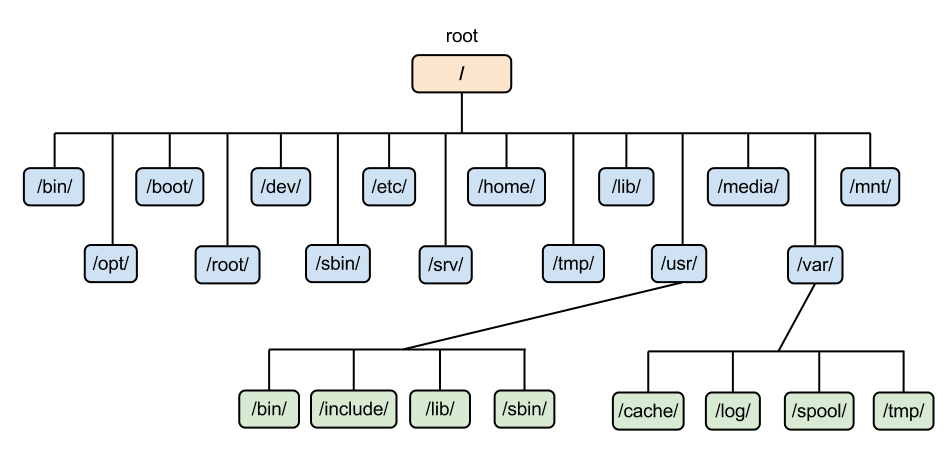
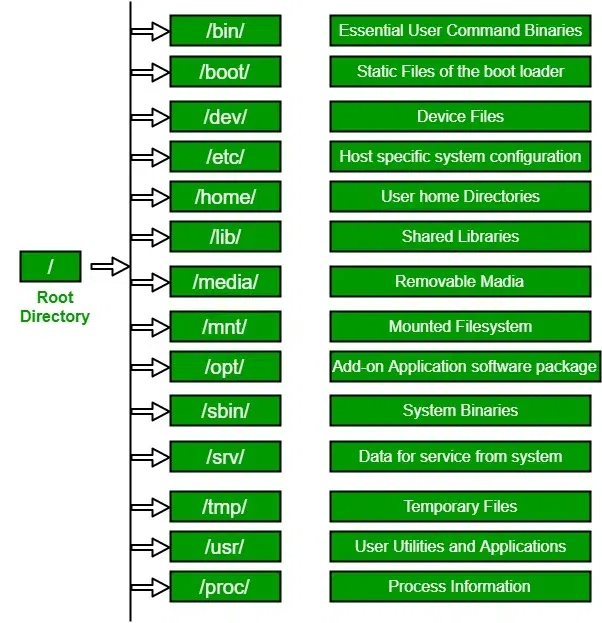
The root directory is the starting point of the hierarchy. All other directories and partitions are mounted under specific points within this tree. Here is a breakdown of the critical directories:
- /bin & /sbin: These contain essential user binaries (commands like `ls`, `cp`) and system binaries (commands like `iptables`, `fdisk`) required for booting and repairing the system.
- /etc: The nerve center of the system. This directory contains configuration files for the system and installed applications. If you are configuring a Linux Web Server like Apache or Nginx, or setting up Linux SSH, you will be working here.
- /var: Standing for “variable,” this directory holds data that changes frequently, such as system logs (`/var/log`), mail spools, and database files for MySQL Linux or PostgreSQL Linux.
- /home: The personal workspace for users. In a multi-user environment, proper management of `/home` is vital for Linux Users management.
- /proc & /sys: These are virtual file systems. They do not exist on the disk but are generated by the Linux Kernel in memory. They provide a window into the kernel’s state, hardware configuration, and running processes.
To visualize the structure and disk usage of these directories, administrators often use tools like `tree` or `du`. However, for a more programmatic approach to System Monitoring, we can use a shell script to analyze directory usage.
Below is a Bash Scripting example that automates the identification of the largest directories within `/var`, which is a common task when troubleshooting disk space alerts in a Linux DevOps workflow.
#!/bin/bash
# Script to identify top 5 space-consuming directories in /var
# Useful for Linux Disk Management and cleanup

TARGET_DIR="/var"
echo "Analyzing disk usage for $TARGET_DIR..."

# Check if the user has root privileges
if [[ $EUID -ne 0 ]]; then
   echo "This script must be run as root"
   exit 1
fi

# Use du (disk usage) to summarize sizes, sort numerically, and grab the top 5
# -h: human readable, -d 1: depth of 1
du -h --max-depth=1 $TARGET_DIR 2>/dev/null | sort -hr | head -n 6

echo "--------------------------------------"
echo "Analysis Complete. Check /var/log or /var/lib for rapid growth."
Implementation: Permissions, Security, and Ownership
AI code generation on computer screen – Are AI data poisoning attacks the new software supply chain attack …
Linux Security relies heavily on the file permission model. Every file and directory has an owner and a group, along with access rights for three categories: User (u), Group (g), and Others (o). The permissions are Read (r), Write (w), and Execute (x). Misconfigured permissions are a leading cause of security vulnerabilities in Linux Web Server environments.
Understanding Octal and Symbolic Modes
Permissions can be set using the `chmod` command. The numeric (octal) representation is calculated by adding values: Read=4, Write=2, Execute=1. For example, `chmod 755` gives the owner full control (7), while the group and others can only read and execute (5). This is a standard setting for scripts and binaries.
Beyond basic permissions, advanced mechanisms like SELinux (Security-Enhanced Linux) and Access Control Lists (ACLs) provide granular control. However, for most Python System Admin tasks, interacting with standard POSIX permissions is a daily requirement. While `chmod` is great for the terminal, Python Scripting allows us to audit and modify permissions programmatically across thousands of files, which is essential for Linux Automation.
The following Python script demonstrates how to walk through a directory tree, identify files with insecure permissions (like world-writable files), and report them. This utilizes the `os` and `stat` modules, key components of Python Automation.
import os
import stat

def audit_permissions(start_path):
    """
    Walks through the file system starting at start_path.
    Identifies files that are world-writable (security risk).
    """
    print(f"Starting security audit on: {start_path}")

    issues_found = 0

    for root, dirs, files in os.walk(start_path):
        for name in files:
            file_path = os.path.join(root, name)
            try:
                # Get file status
                file_stat = os.stat(file_path)
                mode = file_stat.st_mode

                # Check if Other has Write permission (S_IWOTH)
                if mode & stat.S_IWOTH:
                    print(f"[WARNING] World-writable file found: {file_path}")
                    issues_found += 1

                    # Optional: Auto-fix (commented out for safety)
                    # new_mode = mode & ~stat.S_IWOTH
                    # os.chmod(file_path, new_mode)
                    # print(f"  -> Fixed permissions for {name}")

            except PermissionError:
                continue # Skip files we can't read

    print(f"\nAudit Complete. Total risks found: {issues_found}")

if __name__ == "__main__":
    # Example: Audit the web server directory
    audit_permissions("/var/www/html")
Advanced Techniques: Virtual Filesystems and System Programming
As you advance from basic Linux Commands to System Programming, understanding the virtual file systems `/proc`, `/sys`, and `/dev` becomes critical. These directories allow direct interaction with the Linux Kernel and hardware devices without needing specialized system calls for everything.
The /proc Filesystem
The `/proc` directory is a mount point for the `procfs` file system. It contains runtime system information (e.g., system memory, devices mounted, hardware configuration). For example, `/proc/cpuinfo` details the CPU architecture, and `/proc/meminfo` details memory usage. This is where tools like `top` and `htop` gather their data.
Low-Level Interaction with C
AI code generation on computer screen – AIwire – Covering Scientific & Technical AI
For high-performance applications or Linux Development, developers often use C Programming Linux to read these files directly rather than spawning shell commands. This reduces overhead and allows for real-time monitoring. Below is a C program that reads the system’s uptime directly from `/proc/uptime`. This illustrates how standard file I/O operations (`fopen`, `fscanf`) apply even to kernel interfaces.
#include <stdio.h>
#include <stdlib.h>

/*
 * Reads system uptime from /proc/uptime.
 * This demonstrates interacting with the Linux virtual file system via C.
 * Compile with: gcc uptime_reader.c -o uptime_reader
 */

int main() {
    FILE *fp;
    double uptime_seconds, idle_seconds;

    // Open the virtual file
    fp = fopen("/proc/uptime", "r");
    if (fp == NULL) {
        perror("Error opening /proc/uptime");
        return 1;
    }

    // Read the values
    if (fscanf(fp, "%lf %lf", &uptime_seconds, &idle_seconds) != 2) {
        fprintf(stderr, "Error parsing /proc/uptime\n");
        fclose(fp);
        return 1;
    }

    fclose(fp);

    // Convert to readable format
    int days = (int)uptime_seconds / (24 * 3600);
    int hours = ((int)uptime_seconds % (24 * 3600)) / 3600;
    int minutes = ((int)uptime_seconds % 3600) / 60;

    printf("System Uptime: %d days, %d hours, %d minutes\n", days, hours, minutes);
    printf("Total Idle Time: %.2f seconds\n", idle_seconds);

    return 0;
}
Best Practices: Disk Management and Optimization
Effective Linux Disk Management goes beyond just knowing the directory structure. It involves managing storage pools, ensuring data integrity, and preventing file system exhaustion. In enterprise environments, technologies like LVM (Logical Volume Manager) and RAID are standard.

Logical Volume Manager (LVM)
LVM allows administrators to create logical layers over physical hard drives. This means you can resize partitions on the fly without unmounting them (in some cases) or spanning a single file system across multiple physical disks. For a Linux Server hosting dynamic workloads like Docker containers or Linux Database storage, LVM is indispensable.
Monitoring and Maintenance
AI code generation on computer screen – AltText.ai: Alt Text Generator Powered by AI
Two common issues plague Linux file systems: running out of disk space and running out of inodes.
1. Space Exhaustion: Monitored via `df -h`. Usually caused by logs or cache.
2. Inode Exhaustion: Monitored via `df -i`. Caused by having too many small files (common in mail servers or PHP session directories). Even if you have 50GB free, if you run out of inodes, you cannot create new files.
To maintain a healthy system, automation is key. Using tools like Ansible for configuration management ensures that log rotation policies (using `logrotate`) are applied consistently. Below is a practical Python DevOps script that could be used as a cron job to monitor disk usage and alert via a simple mechanism if thresholds are breached.
import shutil
import sys

def check_disk_usage(disk, threshold):
    """
    Checks disk usage for a specific mount point.
    Returns True if usage exceeds threshold percentage.
    """
    try:
        total, used, free = shutil.disk_usage(disk)

        # Calculate percentage used
        percent_used = (used / total) * 100

        print(f"Disk: {disk} | Used: {percent_used:.2f}% | Free: {free // (2**30)} GB")

        if percent_used > threshold:
            return True
        return False

    except FileNotFoundError:
        print(f"Error: Mount point {disk} not found.")
        return False

if __name__ == "__main__":
    # Configuration
    MOUNT_POINT = "/"
    ALERT_THRESHOLD = 85.0 # Percent

    is_critical = check_disk_usage(MOUNT_POINT, ALERT_THRESHOLD)

    if is_critical:
        print(f"CRITICAL ALERT: Disk usage on {MOUNT_POINT} is above {ALERT_THRESHOLD}%")
        # In a real scenario, you might add code here to send an email
        # or trigger a cleanup script via AWS Lambda or local execution.
        sys.exit(1)
    else:
        print("System Status: Healthy")
        sys.exit(0)
Conclusion
Mastering the Linux file system is a journey that takes you from the root directory down to the intricacies of kernel modules. We have covered the essential FHS structure, explored how to secure files using permissions and Python automation, dived into system programming with C, and discussed enterprise-grade disk management with LVM. Whether you are managing AWS Linux instances, building Arch Linux custom builds, or orchestrating Linux Docker containers, these concepts remain constant.
To continue your growth, focus on practical application. Set up a virtual machine, practice partitioning disks with `fdisk` and `mkfs`, experiment with Linux Firewall rules using `iptables` to see how they interact with the network stack, and write scripts to automate your daily maintenance tasks. The file system is the skeleton of Linux; understanding it fully gives you the power to control the body of the operating system with precision and confidence.


