
So there I was, staring at a frozen SSH session at 2 AM on a Tuesday. The staging cluster was completely unresponsive. Again.
People love to complain about systemd. Well, that’s not entirely accurate — I get it. It swallowed half the Linux ecosystem and changed how we interact with our servers. But when your Ubuntu 24.04 machine goes sideways, complaining doesn’t bring the database back online. You need to know exactly how to interrogate the OS.
Forget the basic systemctl restart reflex. Bouncing a failing daemon just hides the underlying issue. Here are the four utilities I actually rely on when things break, and exactly how I use them.
Stop blindly typing journalctl -xe
Every generic tutorial tells you to run journalctl -xe when a unit fails. It’s a trap. Half the time, the actual error scrolled off the screen entirely, buried under a mountain of unrelated cron job spam or SSH brute-force attempts.
Here’s what actually works. When a Node.js background worker crashed last week, I needed total isolation. I ran this instead:
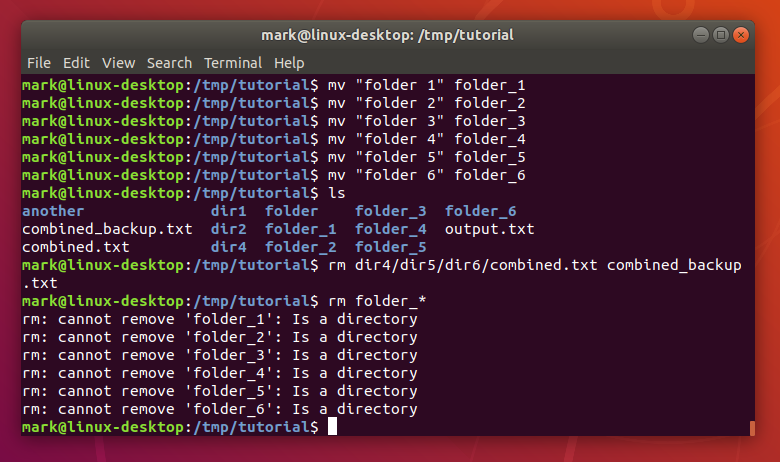
journalctl -eu background-worker.service --since "10 minutes ago"The -e jumps straight to the end of the logs. The -u filters the output to just that specific unit. Adding the timeframe cuts out yesterday’s noise.
And I’ve been burned by log formatting before, too. If you’re running systemd 255 or newer, you can output directly to JSON. I do this obsessively when building automated alerts. Just append -o json-pretty and pipe it right into jq.
Finding the boot bottleneck with systemd-analyze
I recently spun up a new t3.medium EC2 instance. For some reason, it took nearly a minute to become reachable over the network. Unacceptable.
Instead of guessing which startup script was hanging, I asked the system directly.
systemd-analyze blameThis command prints exactly which processes are holding up the boot sequence, sorted by time taken. In my case, systemd-networkd-wait-online.service was timing out, burning 45 seconds trying to resolve a dead interface that didn’t exist in my cloud environment.
I masked the offending unit. Cut my boot time from 48.2 seconds down to 3.1 seconds.
But if the blame list isn’t clear enough, try systemd-analyze critical-chain. It prints a literal tree of dependencies, showing exactly where the delay cascades. It visually highlights the exact moment your boot process stalled.
Catching memory leaks with systemd-cgtop
Tools like top and htop are fantastic. I use them daily. But they show you individual processes. What if you have a web server spawning dozens of child threads that collectively eat all your RAM?
Enter systemd-cgtop.

It groups resource usage by control group (cgroup). This means you see the total CPU and memory consumption of an entire application stack, regardless of how many child processes it spawned under the hood.
systemd-cgtop --depth=2I kept getting Out of Memory (OOM) kills on a Python data scraper. htop made the system look fine because the load was distributed. But running systemd-cgtop immediately revealed the parent scraper was hoarding 4.2GB of RAM across 16 hidden threads. It completely changes how you view system load.
Untangling the dependency web

Ever tried to stop a service, and the OS complains that five other things need it? Or worse, you start a custom script and it silently fails because a hidden requirement wasn’t met.
You need to map the blast radius.
systemctl list-dependencies custom-backup.serviceThis draws an ASCII tree of everything your target needs to run. And I had a custom backup script failing randomly because it was trying to mount an NFS drive before the network stack was fully initialized. One look at the dependency tree showed the problem immediately—it was firing way too early in the target sequence.
I just added After=network-online.target to my unit file. Fixed.
Look, the systemd ecosystem is massive. You don’t need to memorize every single flag in the manual. But keeping these specific filters and commands in your terminal history will save you hours of mindless log scrolling. Next time a server throws a fit, don’t just restart the process. Find out exactly why it died.


