
I watched a junior developer on my team spend three hours last Tuesday writing a Node.js script. The goal? Find all the JPEG files in a nested directory structure, rename them by date, and move them to a backup folder. He was importing fs, handling promises, debugging async/await race conditions, and generally having a miserable time.
I didn’t have the heart to tell him immediately. But eventually, I slacked him a single line of code that did the exact same thing. It took me about 45 seconds to type out.
He looked at it like I’d just cast a spell. “That’s it?”
Yeah. That’s it.
We live in 2026. We have AI coding assistants, incredibly robust high-level languages, and cloud infrastructure that abstracts away the operating system. Yet, the Unix shell remains the fastest way to talk to your computer. If you’re ignoring shell scripting because the syntax looks like line noise, you’re working harder than you need to.
The Pipe Dream
The philosophy here is simple, even if the implementation feels archaic. Small tools. Do one thing well. Chain them together.
The pipe character (|) is probably the most powerful operator in your arsenal. It takes the output of the command on the left and shoves it into the input of the command on the right. No temporary files, no memory overhead of loading a massive dataset into a Python list. Just a stream of text.
I use this constantly for log analysis. Let’s say I need to find which IP addresses are hitting my Nginx server with 404 errors, sort them by frequency, and grab the top 5.
In Python, I’d be opening the file, iterating lines, splitting strings, updating a dictionary, sorting… you know the drill. In Bash?
grep "404" access.log | awk '{print $1}' | sort | uniq -c | sort -nr | head -n 5It’s ugly. I admit it. But it’s instant.
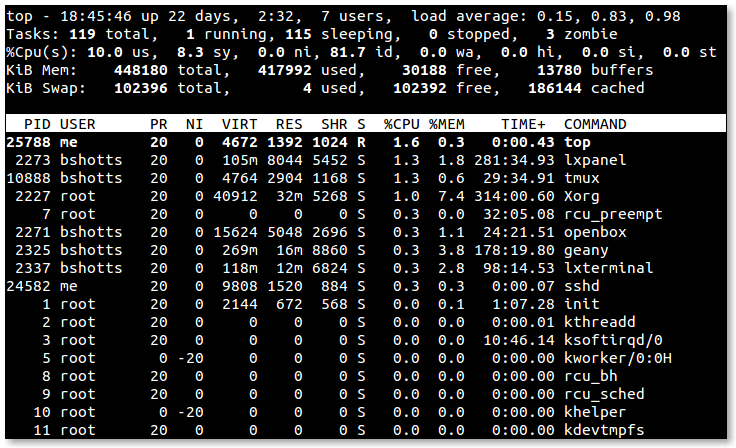
The Usual Suspects: grep, find, and friends
Most of my “scripting” isn’t actually writing files with a .sh extension. It’s just stringing these tools together in the terminal. If you internalize four or five specific commands, you become a wizard to anyone watching over your shoulder.
Find is the one I use most. Stop using your file explorer’s search bar. It’s slow and it lies to you. find is brutal and exact. Want to find every file larger than 100MB that hasn’t been modified in 30 days?
find . -type f -size +100M -mtime +30Grep searches inside files. You probably know this. But combining it with -r (recursive) and -i (ignore case) is muscle memory for me now. I don’t even use my IDE’s “Find in Path” half the time because grep -ri "function_name" . is faster.
Sed and Awk: The scary ones
This is where people usually bail. sed (stream editor) and awk look like they were designed by someone who hates readability. And honestly? They probably were.
But you don’t need to master them. You just need to know the 1% that does 99% of the work.
For sed, just learn substitution. That’s it. s/find/replace/g. I recently had to change a configuration key across fifty different microservices repos. I didn’t open fifty repos. I ran one command:
find . -name "config.yaml" -exec sed -i 's/old_api_key/new_api_key/g' {} +Done. Risky? Maybe. Did I have a git backup? Absolutely. But it saved me an afternoon of clicking.
awk is for columns. If you have data that looks like a table (spaces or commas between values), awk lets you pick a column and do math on it. I barely know the syntax beyond '{print $N}', but that’s usually enough.
Actually Writing a Script
Sometimes a one-liner isn’t enough. You need logic. You need to automate a deployment sequence or a cleanup job that runs every night.
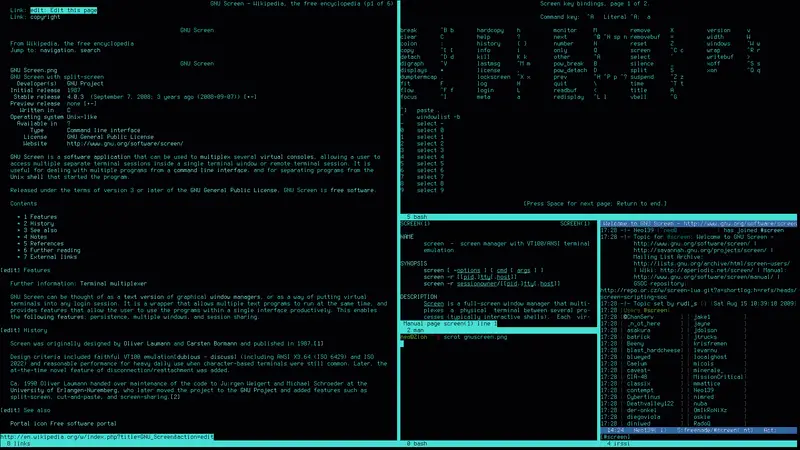
The first rule of shell scripting: Always use a shebang.

That #!/bin/bash at the top isn’t decor. It tells the kernel exactly which interpreter to use. If you don’t include it, you’re leaving it up to the user’s current shell to guess how to run your commands, which is a recipe for disaster when someone running Zsh tries to execute your Bash-specific syntax.
Here is a script I actually use. It cleans up old docker containers and images because Docker loves to eat my disk space.
#!/bin/bash

# Stop on first error
set -e

echo "Starting cleanup..."

# Check disk usage before
df -h | grep "/$"

# Remove stopped containers
if [ $(docker ps -aq | wc -l) -gt 0 ]; then
    echo "Removing stopped containers..."
    docker rm $(docker ps -aq)
else
    echo "No containers to remove."
fi

# Remove dangling images
if [ $(docker images -f "dangling=true" -q | wc -l) -gt 0 ]; then
    echo "Removing dangling images..."
    docker rmi $(docker images -f "dangling=true" -q)
fi

echo "Cleanup complete."
df -h | grep "/$"
Is it pretty? No. Does it work every single time without me needing to install Python dependencies or worry about Node versions? Yes.
The Pain Points (Because I’m not a zealot)
I’m not going to sit here and tell you Bash is perfect. It’s full of footguns. The syntax for if statements is notoriously finicky about spaces. If you forget a space inside the brackets like if [$a == $b], it fails. You need if [ $a == $b ]. Why? Because [ is actually a command (synonym for test), not just syntax, so it needs spaces around it.
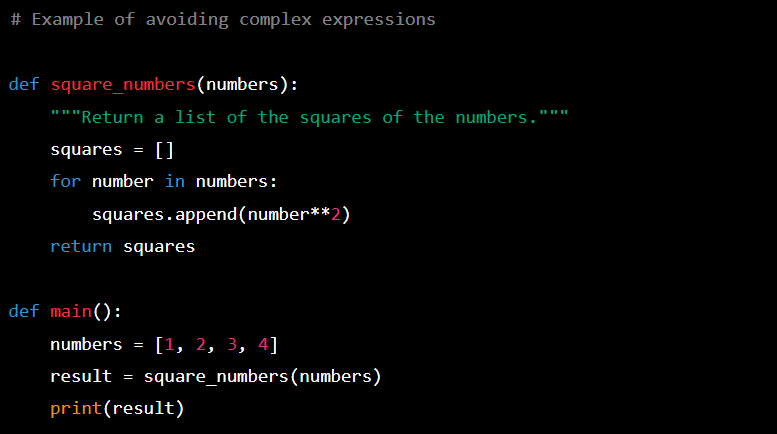
Variables are another headache. Dealing with spaces in filenames is the bane of every shell scripter’s existence. You have to quote everything. "$file". Always. If you don’t, a file named “My Resume.pdf” gets treated as two arguments, “My” and “Resume.pdf”, and your script explodes.
And debugging? Good luck. Your best bet is usually sprinkling echo "I got here" throughout the file or running the script with bash -x script.sh to see the execution trace.
When to Switch to Python
I have a simple rule. If I need arrays, dictionaries, or JSON parsing, I switch to Python (or Go). Bash can do arrays, but it’s painful. And parsing JSON with grep and sed is a dark art that usually breaks the moment the JSON format changes slightly. (Use jq if you absolutely must stay in the shell, it’s a lifesaver).
But for moving files, executing system commands, simple text replacement, or piping data between tools? Shell is king.
So next time you’re about to write a 50-line Python script to automate a simple workflow, stop. Open your terminal. Type man find. You might just save yourself two hours and a dependency headache.


