
In the modern landscape of technology, the operating system that powers the vast majority of the internet and enterprise infrastructure is Linux. Whether you are provisioning instances on AWS EC2, managing containers in Kubernetes, or deploying serverless functions on Azure, the underlying foundation is almost invariably a Linux distribution. For the aspiring DevOps engineer, Cloud Architect, or Site Reliability Engineer (SRE), mastering Linux is not merely an optional skill—it is a critical necessity.
This comprehensive Linux tutorial aims to bridge the gap between basic desktop usage and professional Linux Administration required for cloud environments. While proprietary systems exist, the open-source nature of the Linux Kernel has allowed it to become the standard for high-performance computing, web servers, and cloud infrastructure. From the stability of Red Hat Linux and CentOS to the user-friendly nature of Ubuntu Tutorial guides and the bleeding-edge flexibility of Arch Linux, the principles remain largely the same.
In this article, we will dive deep into the core concepts of the Linux file system, user management, and permissions, before transitioning into automation with Bash Scripting and Python. We will also explore essential networking concepts, security hardening with tools like SELinux and iptables, and the role of Linux in the containerization era with Docker and Kubernetes.
The Foundation: File Systems, Permissions, and Process Management
To navigate a Linux Server effectively, one must understand how the system is structured. Unlike Windows, which uses drive letters, Linux uses a unified file system hierarchy starting from the root directory (/). Understanding where files reside is the first step in troubleshooting and system configuration.
The Linux File System Hierarchy
The Filesystem Hierarchy Standard (FHS) defines the directory structure and directory contents in Linux distributions. Key directories include:
- /etc: The nerve center of the system. This contains all system-wide configuration files. If you are configuring a Linux Web Server like Nginx or Apache, you will be working here.
- /var: Variable files. This includes System Logs (
/var/log), mail spools, and temporary files that are expected to grow in size. - /bin & /usr/bin: Essential user command binaries (like
ls,cp,mv). - /home: Personal directories for users.
- /proc: A virtual file system that provides a mechanism for the kernel to send information to processes.
Permissions and Ownership
Linux Security relies heavily on file permissions. Every file and directory has an owner and a group. Permissions are divided into Read (r), Write (w), and Execute (x) for three categories: User (u), Group (g), and Others (o). Misconfigured permissions are a leading cause of security vulnerabilities.
The chmod command modifies these permissions, while chown changes ownership. In a DevOps environment, ensuring that your CI/CD agents or web servers have only the necessary permissions (Principle of Least Privilege) is vital.
Practical Example: User Management and Permissions
Below is a Bash script example that demonstrates how to create a new user for a specific service, assign them to a group, and lock down directory permissions. This is a common task when setting up a Linux Database server like PostgreSQL Linux or MySQL Linux.
#!/bin/bash

# Define variables
SERVICE_USER="app_deployer"
SERVICE_GROUP="devops_team"
APP_DIR="/var/www/html/app_v1"

# Check if script is run as root
if [ "$EUID" -ne 0 ]; then
  echo "Please run as root"
  exit 1
fi

# Create the group if it doesn't exist
if ! getent group "$SERVICE_GROUP" > /dev/null; then
    groupadd "$SERVICE_GROUP"
    echo "Group $SERVICE_GROUP created."
fi

# Create the user with a specific shell and home directory
if ! id "$SERVICE_USER" &>/dev/null; then
    useradd -m -s /bin/bash -g "$SERVICE_GROUP" "$SERVICE_USER"
    echo "User $SERVICE_USER created and added to $SERVICE_GROUP."
else
    echo "User $SERVICE_USER already exists."
fi

# Create application directory
mkdir -p "$APP_DIR"

# Set Ownership: User gets full control, Group gets access
chown -R "$SERVICE_USER":"$SERVICE_GROUP" "$APP_DIR"

# Set Permissions:
# 7 (rwx) for User
# 5 (r-x) for Group (Read and Enter directory, no write)
# 0 (---) for Others (No access)
chmod -R 750 "$APP_DIR"

echo "Permissions set successfully for $APP_DIR"
ls -ld "$APP_DIR"
Automation: The Heart of Linux DevOps
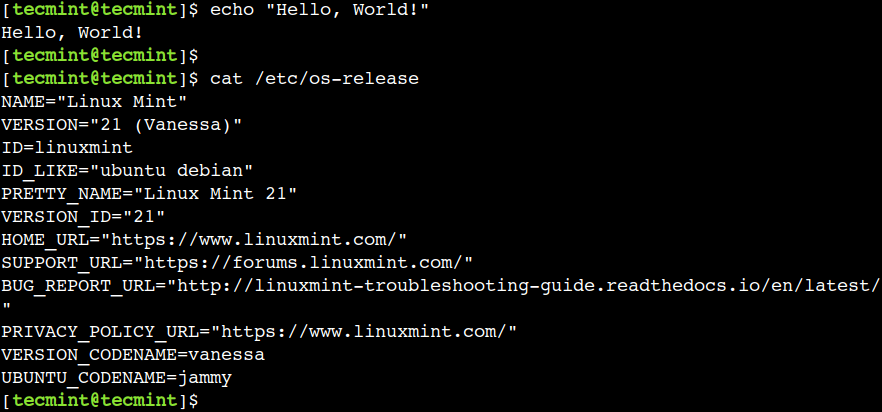
In the realm of Linux Cloud engineering, manual tasks are the enemy. Linux Automation is achieved primarily through Shell Scripting (Bash) and higher-level languages like Python. Whether you are managing Fedora Linux workstations or thousands of Debian Linux servers, scripting allows for reproducible infrastructure.
Bash Scripting vs. Python Scripting
Bash Scripting is native to the Linux Terminal. It is excellent for file manipulation, executing system commands, and piping output between tools like grep, sed, and awk. It is the glue that holds Linux Utilities together.
Python Scripting, however, is preferred for complex logic, data parsing, and interacting with cloud APIs (AWS boto3, Azure SDK). Python System Admin tasks often involve parsing JSON logs or interacting with databases, where Bash might become unwieldy.
Implementation: Automated System Monitoring
System Monitoring is crucial for maintaining uptime. While tools like top command, htop, and vmstat provide real-time data, you need automated scripts to alert you when thresholds are breached. Below is a Python Automation script utilizing the psutil library (a standard tool in Python DevOps) to monitor resources.
import psutil
import smtplib
from email.mime.text import MIMEText
import socket

# Configuration
CPU_THRESHOLD = 80.0  # Percentage
RAM_THRESHOLD = 85.0  # Percentage
DISK_THRESHOLD = 90.0 # Percentage
ADMIN_EMAIL = "admin@example.com"
HOSTNAME = socket.gethostname()

def send_alert(subject, body):
    """Mock function to send email alerts"""
    msg = MIMEText(body)
    msg['Subject'] = f"ALERT: {subject} on {HOSTNAME}"
    msg['From'] = "monitor@example.com"
    msg['To'] = ADMIN_EMAIL

    # In production, configure your SMTP server here
    print(f"--- SIMULATING EMAIL ---\nTo: {ADMIN_EMAIL}\nSubject: {msg['Subject']}\nBody: {body}\n------------------------")

def check_system_health():
    issues = []

    # Check CPU
    cpu_usage = psutil.cpu_percent(interval=1)
    if cpu_usage > CPU_THRESHOLD:
        issues.append(f"High CPU Usage: {cpu_usage}%")

    # Check Memory
    memory = psutil.virtual_memory()
    if memory.percent > RAM_THRESHOLD:
        issues.append(f"High Memory Usage: {memory.percent}%")

    # Check Disk
    disk = psutil.disk_usage('/')
    if disk.percent > DISK_THRESHOLD:
        issues.append(f"Low Disk Space: {disk.percent}% used")

    if issues:
        alert_body = "\n".join(issues)
        send_alert("System Resource Critical", alert_body)
    else:
        print("System health is within normal parameters.")

if __name__ == "__main__":
    print(f"Starting monitoring on {HOSTNAME}...")
    check_system_health()
Advanced Techniques: Networking, Security, and Containers
Moving beyond local administration, a Linux Engineer must master Linux Networking and containerization. The cloud is essentially a massive network of Linux servers communicating via TCP/IP.
Hardening Network Security
Security is paramount. Linux Firewall configuration using iptables or modern wrappers like ufw (Uncomplicated Firewall) or firewalld is essential. Furthermore, Linux SSH (Secure Shell) is the standard for Remote Access. Best practices dictate disabling root login, using key-based authentication, and changing the default port.
Advanced security modules like SELinux (Security-Enhanced Linux) provide mandatory access control, adding a layer of safety that prevents compromised processes from accessing files they shouldn’t, even if they have root privileges.
The Container Revolution: Docker and Kubernetes
Modern “Linux Cloud” infrastructure is defined by containers. Linux Docker technology relies on kernel features like cgroups (control groups) and namespaces to isolate processes. Understanding these underlying Linux concepts makes troubleshooting Kubernetes Linux nodes significantly easier.
When you build a Docker image, you are essentially creating a minimal Linux file system. Optimizing these images requires knowledge of package managers (apt, yum, dnf) and removing unnecessary artifacts to reduce attack surface.

Practical Example: Optimized Dockerfile for Python
Here is an example of a Dockerfile that employs multi-stage builds—a best practice in Linux Development—to create a lightweight, secure container for a Python application. This minimizes the final image size by excluding build tools (like GCC) from the runtime image.
# Stage 1: Builder
# We use a larger image with all build tools installed
FROM python:3.9-slim as builder

WORKDIR /app

# Install system dependencies required for compiling Python packages
# This demonstrates package management in a containerized environment
RUN apt-get update && apt-get install -y \
    gcc \
    libpq-dev \
    && rm -rf /var/lib/apt/lists/*

COPY requirements.txt .
RUN pip install --user --no-cache-dir -r requirements.txt

# Stage 2: Runtime
# We switch to a smaller, more secure base image
FROM python:3.9-slim

WORKDIR /app

# Create a non-root user for security (Linux Users best practice)
RUN groupadd -r appgroup && useradd -r -g appgroup appuser

# Copy only the installed packages from the builder stage
COPY --from=builder /root/.local /home/appuser/.local
COPY . .

# Ensure the non-root user owns the application code
RUN chown -R appuser:appgroup /app

# Update PATH to include user-installed binaries
ENV PATH=/home/appuser/.local/bin:$PATH

# Switch to non-root user
USER appuser

# Command to run the application
CMD ["python", "main.py"]
Best Practices and System Optimization
To truly excel in Linux Administration, one must adopt a mindset of continuous optimization and proactive management. Here are key areas to focus on for production environments.
Performance Tuning and Troubleshooting
When a server slows down, a DevOps engineer must act fast. Tools like strace (for tracing system calls), tcpdump (for analyzing network packets), and iostat (for Linux Disk Management I/O stats) are invaluable. Understanding Load Average is also critical; it represents the number of processes waiting for CPU time. A high load average indicates a bottleneck.
For text processing during troubleshooting, mastery of grep, sed, and awk allows you to parse gigabytes of logs in seconds to find the root cause of an error.
Backup and Recovery
Data integrity is non-negotiable. Implementing Linux Backup strategies using tools like rsync or configuring LVM (Logical Volume Manager) snapshots allows for disaster recovery. For high availability, understanding RAID (Redundant Array of Independent Disks) levels is necessary for on-premise or bare-metal Linux servers.
Infrastructure as Code (IaC)
Modern Linux management rarely involves manually SSH-ing into servers to run commands. Tools like Ansible, Terraform, and Chef allow you to define your Linux configuration in code. Ansible, for example, uses SSH to push configurations to nodes, making it a favorite for those who have mastered Linux SSH and Python.
Conclusion
Mastering Linux is a journey, not a destination. As the cloud landscape evolves, so too does the Linux ecosystem. From the kernel level up to the orchestration of microservices in Kubernetes, the concepts covered in this article—File Systems, Permissions, Scripting, Networking, and Containerization—form the bedrock of a successful career in DevOps and Cloud Engineering.
Whether you are debugging a C Programming Linux application, configuring a complex firewall rule set, or optimizing a Python automation script, the command line is your most powerful tool. Continue to explore, experiment with different Linux Distributions, and deepen your understanding of the internal workings of the OS. The time invested in learning these fundamentals will pay dividends throughout your entire career in technology.


