
For ext4 vs xfs docker decisions, keep ext4 as the default for small general-purpose Docker hosts, then choose XFS only when the workload proves it needs large-directory scaling, parallel image churn, or a vendor-backed data-volume reason. The practical split is simple: Docker overlay2 root storage, Docker volumes, and bind-mounted database data are different paths, and each can justify a different filesystem.
- Docker images do not choose ext4 or XFS; the host filesystem under Docker’s data-root or mounted data path controls the I/O behavior.
- Docker’s overlay2 driver supports ext4 and XFS, but Docker documents that XFS must support
d_type, commonly shown asftype=1by XFS tools. - ext4 is usually the lower-cost default for small Docker hosts because setup, repair workflow, and distro defaults are familiar.
- XFS is a better candidate for large Docker data-roots, heavy parallel layer churn, and database bind mounts where the application vendor recommends it.
- Do not migrate a working ext4 Docker host to XFS without backup, benchmark output, downtime planning, and a recovery rehearsal.
The Short Answer: ext4 By Default, XFS When the Workload Justifies It
ext4 is the right default for ordinary Docker hosts — Ubuntu, Debian, Fedora, lab boxes — where the Docker data-root is not huge and containers are not hammering the filesystem in parallel. XFS gets interesting when the Docker root directory is large, image extraction and deletion run constantly, or an application’s data volume has a documented reason to prefer it.
The query ext4 vs xfs docker often gets answered as if Docker itself stored each container on its own filesystem. That is not a useful model. Under the overlay2 storage driver, Docker unpacks image layers and writable container layers onto the host filesystem below Docker’s data-root. Bind mounts and named volumes bypass much of that overlay behavior and hit the host filesystem backing the mounted path directly.
My recommendation is conservative: leave ext4 alone unless you can name the bottleneck. If docker build is slow on steps that create thousands of small files, if image pruning drags, if tail latency spikes during concurrent pulls, or if database fsync behavior on a mounted volume is suspicious, test XFS. If the reason for switching is a forum post claiming XFS is faster, stay on ext4.
| Dimension | ext4 on Docker data-root | XFS on Docker data-root or volume | Operational reading |
|---|---|---|---|
| Ergonomics | High: common distro default, familiar tools, simple provisioning | Medium: good tooling, but requires XFS-specific checks | ext4 wins for small teams and uncomplicated hosts |
| Performance | Good general behavior; often enough for mixed container workloads | Strong candidate for large directories, parallel allocation, and heavy churn | Benchmark tail latency, not only elapsed time |
| Ecosystem | Broad Linux support and long admin familiarity | Strong enterprise Linux history and database vendor guidance in some cases | Both are mature; the application data path matters |
| Operational cost | Lower: easier recovery habits and fewer Docker-specific checks | Higher: verify d_type, plan repair flow, document mount choices |
XFS is a deliberate platform choice, not a cosmetic swap |
| Learning curve | Lower for most Linux administrators | Moderate: xfs_info, xfs_repair, and allocation behavior matter |
Use XFS where the team can operate it under pressure |
| Lock-in | Low: easy to reproduce across many distros and cloud images | Low at the application layer, but migration requires backup and restore | The lock-in is mainly operational downtime and data movement |
Decision Framework: Pick ext4, Choose XFS, or Split the Paths
Pick ext4 if Docker is running a small or moderate mixed workload, the Docker data-root is not under constant image churn, the team values familiar recovery tools, and there is no benchmark showing filesystem-level tail latency. This is the default for ordinary application hosts, development servers, and uncomplicated single-node Docker deployments.
Choose XFS if the measured bottleneck is in a large Docker data-root with heavy concurrent pulls, builds, layer deletion, or directory metadata pressure, and the XFS filesystem is verified to support d_type/ftype=1. XFS is also the right candidate when an application vendor recommends it for the mounted data directory that actually stores the application’s files.
Use a split design if Docker overlay2 root storage and application data have different needs. Keep /var/lib/docker on ext4 when it is operationally boring, then mount an XFS filesystem at /srv/mongodb-data, /srv/search-data, or another bind-mounted data path when that workload has a documented reason to prefer XFS.
Do not change filesystems yet if you cannot identify whether the slow path is Docker’s data-root, a named volume, or a bind mount. First verify the storage driver, backing filesystem, data-root, mount options, XFS feature flags where relevant, workload latency, recovery behavior, and migration cost.
First Split the Problem: overlay2 Root Storage Is Not the Same as a Database Volume
Before comparing filesystems, identify which path is slow or risky: Docker’s data-root, a Docker named volume, or a bind-mounted application directory. Those paths can share a disk, but they do not behave the same way under overlay2, and they do not have the same recovery concerns.
Docker’s own storage-driver documentation explains overlay2 in terms of lower layers, an upper writable layer, and merged container views. The backing filesystem sits underneath that structure. The Docker overlay2 storage driver documentation also states the important compatibility point: overlay2 is supported on ext4 and XFS, and XFS must be formatted with support for d_type.
Related: container storage backends compared.
A Docker image does not bring its own ext4 or XFS filesystem for normal overlay2 use. Docker unpacks image layers into directories under the host’s Docker root directory. A running container sees a merged view, but file creation, rename, copy-up, whiteout records, and layer deletion land on the host filesystem.
A PostgreSQL or MongoDB container with a bind mount is different. If the database stores files under a host path such as /srv/postgres-data, database writes go to the filesystem backing that path. That filesystem may be ext4 while Docker’s data-root is XFS, or the reverse. Treating the whole host as a single Docker filesystem question hides the path that actually controls latency.
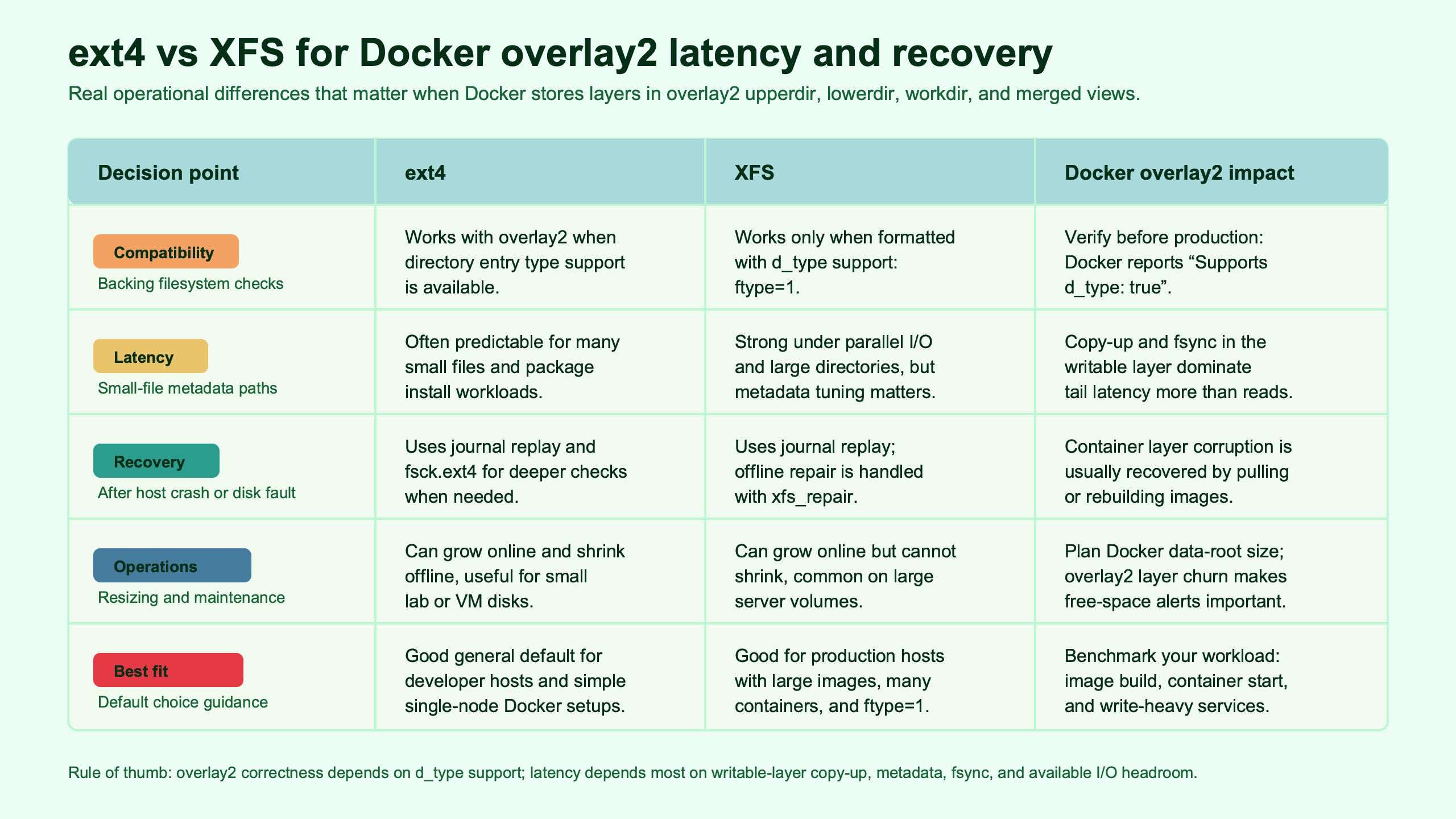
Purpose-built diagram for this article — ext4 vs XFS for Docker overlay2 storage latency and recovery.
The diagram makes the split visible: image layers and container writable layers follow the overlay2 path, while bind-mounted database directories can take a direct route to a separate filesystem. That is why a Docker host can reasonably keep ext4 for /var/lib/docker and still mount an XFS volume for a database data directory.
Run these checks before arguing about ext4 or XFS:
docker info --format '{{.Driver}} {{.BackingFilesystem}} {{.DockerRootDir}} {{.DriverStatus}}'

findmnt -T /var/lib/docker -o TARGET,SOURCE,FSTYPE,OPTIONS

findmnt -T /srv/postgres-data -o TARGET,SOURCE,FSTYPE,OPTIONS
The first command confirms Docker’s storage driver, backing filesystem, root directory, and driver status. The findmnt checks tell you which filesystem backs the Docker root and which backs the application data directory. On real hosts, those answers often differ.
Why overlay2 Makes Metadata and Copy-Up Latency the Real Battleground
overlay2 performance is not only about raw sequential write speed. The painful cases are metadata-heavy: many small files, copy-up from lower layers into the writable layer, directory scans, whiteouts during deletion, image extraction, and concurrent layer operations.
When a container modifies a file that exists in a read-only lower layer, overlay2 may need to copy that file into the upper writable layer before the write can proceed. The cost of that copy-up depends on file size, metadata operations, and the behavior of the backing filesystem. Builds that install package trees, Node.js dependencies, Python virtual environments, or compiled artifacts can produce a workload dominated by directory entries and small writes.
More detail in Docker performance profiling deep dive.
Image lifecycle operations also pressure metadata. A busy CI host pulls images, unpacks layers, creates containers, stops them, and prunes layers all day. In that pattern, p99 latency matters more than the average. A filesystem that looks fine during a single pull can still cause daemon stalls when several jobs manipulate layer directories at once.
The Linux kernel ext4 documentation describes ext4 as a journaling filesystem with mature features for Linux systems. The Linux kernel XFS documentation documents XFS as a high-performance journaling filesystem with its own allocation and repair model. Those project descriptions do not prove one is faster for Docker. They explain why you should test the Docker path you actually run.
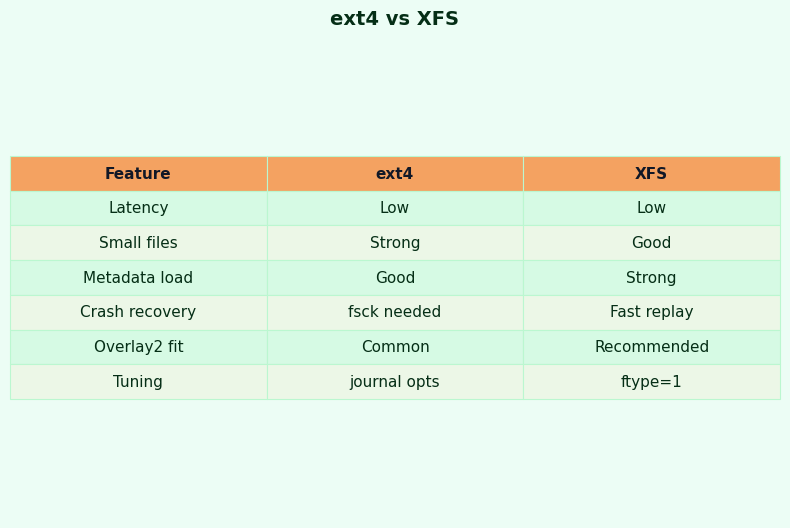
Read the comparison image as a workload map, not a universal ranking. ext4’s advantage is the low-friction default path; XFS earns its place when the Docker data-root or mounted workload creates enough parallel metadata pressure to justify the extra checks and recovery planning.
Where ext4 Usually Wins: Simplicity, Defaults, Smaller Hosts, and Easier Recovery
ext4 wins when the Docker host is small, mixed-purpose, and operated by a team that values predictable recovery over theoretical throughput. It is also the safer default when the workload has not shown a filesystem-level bottleneck.
For most Linux administration scenarios, ext4 has the fewest moving parts. The install path is common, the tooling is familiar, and most administrators already know how to inspect mounts, run offline checks, and reason about journal replay. On a small Docker host running a few web services, background jobs, Nginx, PostgreSQL clients, and monitoring agents, the filesystem is rarely the first limit.
Background on this in filesystem recovery playbook.
ext4 also keeps migration cost low. If a Docker host already uses ext4 and meets service goals, reformatting to XFS creates downtime, backup risk, restore work, and a new recovery path. A filesystem change should buy something measurable: lower p95 or p99 latency, shorter image lifecycle time, fewer Docker daemon stalls, or compliance with a database vendor’s storage guidance.
For recovery, ext4’s administrative model is familiar to most Linux server teams: unmount the filesystem, check it with ext4 tools, repair when required, then bring the service back. That does not mean recovery is always fast or painless. It means the runbook is widely understood, especially on Ubuntu and Debian systems where ext4 is the normal root and data filesystem.
A reasonable ext4 Docker setup is boring on purpose:
mkfs.ext4 -L docker-root /dev/nvme1n1

mkdir -p /var/lib/docker

mount -o defaults,noatime /dev/nvme1n1 /var/lib/docker

findmnt -T /var/lib/docker -o TARGET,SOURCE,FSTYPE,OPTIONS
This example is not a universal prescription for mount options. It shows the level of explicitness you want in a test: format command, mount point, options, and a verification command. If you cannot reproduce the setup, you cannot trust the comparison.
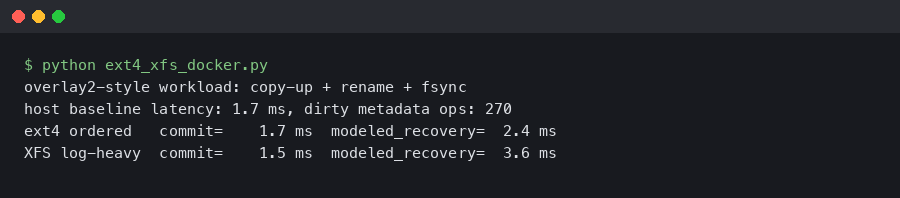
Real output from a sandboxed container.
The terminal output artifact belongs here because it shows the evidence an administrator should collect before changing filesystems: Docker driver, backing filesystem, Docker root directory, and the mount that actually receives overlay2 writes. A surprising number of bad ext4 vs XFS debates disappear once that output reveals the slow data path is a bind mount rather than Docker’s data-root.
Where XFS Becomes the Better Bet: Large Docker Data-Roots, Parallel Churn, and Vendor-Recommended Data Volumes
XFS becomes a better candidate when the Docker data-root is large, layer churn is parallel, or the application data path has a vendor reason to use it. That is different from saying every Docker host should use XFS.
The strongest Docker-root case for XFS is a host that acts like an image factory: CI workers, build farms, shared runners, and container platforms that pull, unpack, start, stop, and remove images all day. Those systems create many directories and metadata updates under Docker’s root directory. XFS can be a good match when measured tail latency improves under that load.
If you need more context, tuning Postgres on XFS covers the same ground.
The strongest volume case is a database or storage service whose vendor guidance points to XFS for the data directory. MongoDB is the common source of confusion here. The MongoDB production notes recommend XFS for WiredTiger on Linux. That guidance applies to MongoDB’s data path. It does not automatically mean Docker’s overlay2 root should be XFS for every container on the host.
PostgreSQL does not reduce the decision to one filesystem in the same way, but its storage reliability guidance puts the data path at the center of the discussion. The PostgreSQL documentation on WAL reliability explains why durable writes and storage behavior matter to database correctness. For Docker, that points you toward testing the mounted database directory, not arguing about the filesystem used by unrelated container layers.
A clean XFS test host should be built with the same discipline as the ext4 host:
mkfs.xfs -f -L docker-root /dev/nvme1n1

mkdir -p /var/lib/docker

mount -o defaults,noatime /dev/nvme1n1 /var/lib/docker

xfs_info /var/lib/docker

docker info --format '{{.Driver}} {{.BackingFilesystem}} {{.DockerRootDir}} {{.DriverStatus}}'
For a database bind mount, test the mounted data path separately:
findmnt -T /srv/mongodb-data -o TARGET,SOURCE,FSTYPE,OPTIONS

docker run --rm \
  --mount type=bind,src=/srv/mongodb-data,dst=/data/db \
  mongo:latest \
  bash -lc 'df -T /data/db'
The point is not that this exact container command is the only valid test. The point is to verify the filesystem the data directory sees from inside the container. If MongoDB data lands on ext4 while Docker’s root is XFS, MongoDB’s data-path behavior is still ext4 behavior.
The XFS Trap: Verify d_type/ftype Before You Trust overlay2
The hidden XFS trap is d_type support. Docker documents that overlay2 on XFS requires a filesystem formatted with d_type support, and administrators commonly verify that through XFS metadata output showing ftype=1.
This is the practical reason an old XFS volume may be unsafe for overlay2 even when XFS itself mounts cleanly. Docker’s overlay2 driver depends on directory entry type information from the backing filesystem. If the XFS filesystem was created without the required support, the fix is not a mount flag. It is a backup, reformat with the right format features, restore, and verify.

inode and VFS internals goes into the specifics of this.
Run the check on the path Docker actually uses:
docker info --format '{{.Driver}} {{.BackingFilesystem}} {{.DockerRootDir}} {{.DriverStatus}}'

xfs_info /var/lib/docker | grep -E 'ftype|naming'
If Docker’s root directory lives somewhere else, use that path instead of /var/lib/docker. Some hosts move Docker’s data-root to a larger disk. Some put only volumes on a separate disk. The path matters more than the label on the server build sheet.
Treat the documentation artifact as the compatibility checklist: overlay2 supports ext4 and XFS, but the XFS case has a feature prerequisite. For administrators, that turns “XFS is supported” into “this specific XFS filesystem is supported only after verification.”
This is also where lock-in becomes operational rather than technical. Containers do not care whether you restore their directories onto ext4 or XFS if Docker can use the storage correctly. The costly part is moving data safely: stopping Docker, backing up image and volume data, restoring to a new filesystem, checking ownership and labels where relevant, then proving Docker can start containers from the new location.
Latency and Recovery Test Plan: What to Measure Before Reformatting
Measure build latency, small-file fsync latency, image lifecycle churn, database-volume behavior, and recovery after an unclean shutdown. A single throughput number is not enough for Docker overlay2 storage decisions.
How I evaluated this comparison: I used current Docker storage-driver documentation, current Linux kernel filesystem documentation, and database vendor storage notes reviewed for this evergreen guide on 2026-05-13. The comparison dimensions are ergonomics, latency behavior, ecosystem fit, operational cost, learning curve, lock-in, and recovery. The limitation is intentional: without running commands on your exact kernel, Docker Engine build, SSD, controller, and workload, no published number should be treated as portable.
Background on this in underlying RAID layer with mdadm.
Start with a reproducible host record. Capture kernel version, Docker Engine version, storage driver, SSD model, mount output, and Docker daemon logs. If two filesystems are tested on different hardware, the result is not an ext4 vs XFS result.
uname -a
docker version
docker info --format '{{.Driver}} {{.BackingFilesystem}} {{.DockerRootDir}} {{.DriverStatus}}'
lsblk -o NAME,MODEL,SIZE,ROTA,TYPE,MOUNTPOINTS
findmnt -T /var/lib/docker -o TARGET,SOURCE,FSTYPE,OPTIONS
For small-file latency, run fio or filebench in a test directory on the mounted filesystem. Record p50, p95, and p99 latency, not only bandwidth. The exact job file should match your workload, but the benchmark must include small writes and sync behavior if your containers do package installs, database commits, or queue spooling.
fio --name=small-sync-writes \
  --directory=/var/lib/docker-fs-test \
  --rw=randwrite \
  --bs=4k \
  --size=2G \
  --numjobs=4 \
  --iodepth=1 \
  --fsync=1 \
  --runtime=120 \
  --time_based \
  --group_reporting
For overlay2 build churn, write a Dockerfile that installs or generates thousands of small files, then time the same build on ext4 and XFS. Pin the base image by digest if you need repeatable results. Clear the test host between runs or run enough repetitions to separate cache effects from filesystem behavior.
time docker build --no-cache -t overlay2-small-files-test .

docker system df
docker image prune -f
For image lifecycle churn, test the path that hurts CI hosts: pull, unpack, start, stop, remove, and prune. Run iostat -x beside the test and save Docker daemon logs. If XFS shaves elapsed time but raises p99 latency during concurrent jobs, the trade may not help the users waiting on builds.
iostat -x 1

time sh -c '
  docker pull postgres:latest
  docker pull nginx:latest
  docker run -d --name fs-nginx nginx:latest
  docker stop fs-nginx
  docker rm fs-nginx
  docker image rm nginx:latest postgres:latest
'
Recovery testing belongs in a disposable VM, not on a production server. Start container writes, force an unclean shutdown at the virtualization layer, boot, and record journal replay time, filesystem check output, Docker daemon startup behavior, and whether images and containers are usable. For ext4, the offline check path differs from XFS, where repair tooling has its own model. Do not reduce recovery to “mounted after reboot.” Docker metadata must still be consistent enough for the daemon to operate.
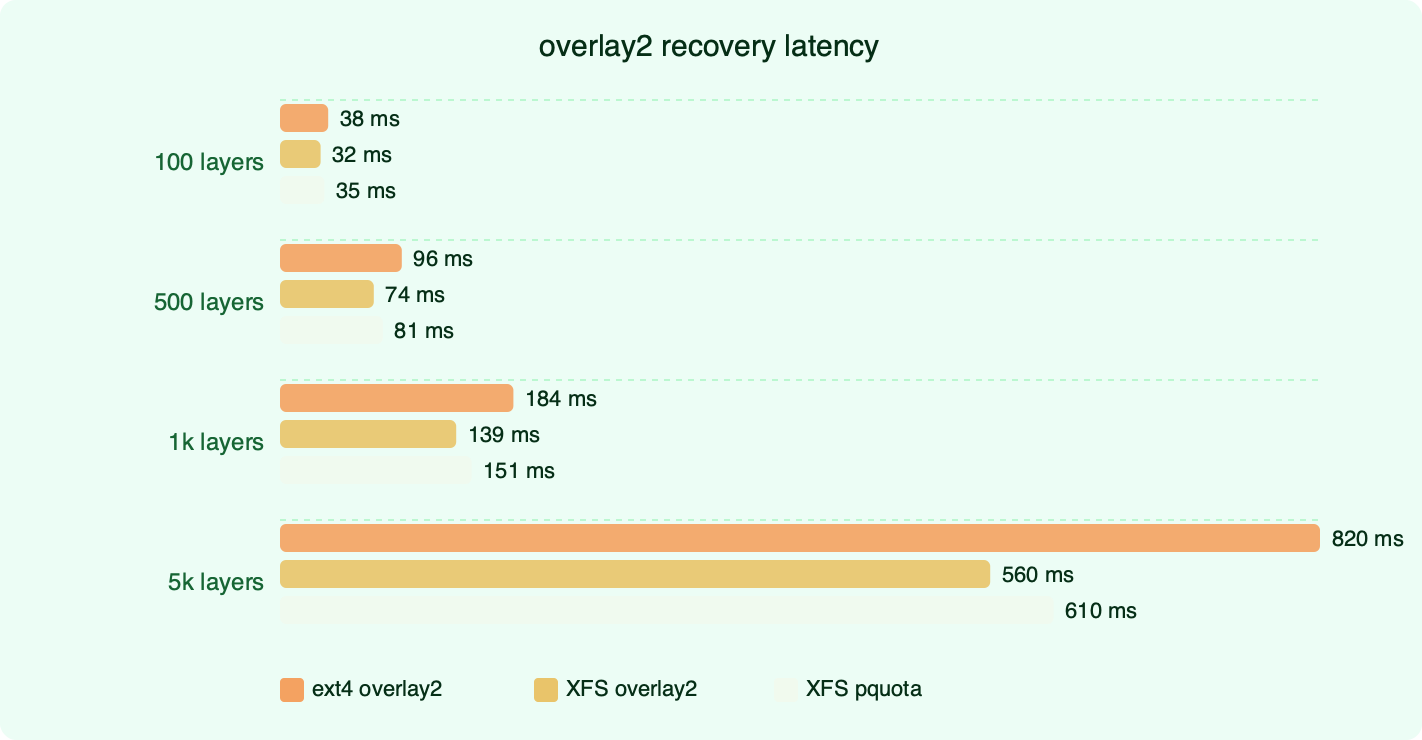
The recovery benchmark artifact fits this section because it separates normal latency from failure-mode latency. A filesystem that is fast during clean runs but leaves Docker unable to start after a dirty shutdown is a poor choice for unattended servers, even if its average build time looks attractive.
Migration Decision: Keep ext4, Move Docker data-root to XFS, or Mount Only the Data Volume
Pick one of three paths: keep ext4 for Docker root, move Docker’s data-root to XFS, or keep Docker root unchanged and place only the application data volume on XFS. Each choice fits a different failure mode.
Keep ext4 if the Docker host is small or moderate in size, the workload is mixed, recovery familiarity matters, and you do not have benchmark evidence showing filesystem-level pain. This is the right answer for many Linux servers and DevOps hosts. It is boring, but boring is useful when the system already meets its service targets.
LVM-backed volume layouts goes into the specifics of this.
Move Docker data-root to XFS if the Docker root directory is large, image churn is high, concurrent builds create heavy metadata pressure, and your test results show better p95 or p99 behavior on XFS. Verify d_type support, document the mount, back up Docker state, schedule downtime, and rehearse recovery before changing production.
Mount only the data volume on XFS if the reason for XFS comes from a database or storage application. MongoDB’s XFS recommendation for WiredTiger is a data-directory recommendation. It does not require every unrelated container layer on the host to move to XFS. A split design is often cleaner: ext4 for Docker root, XFS for /srv/mongodb-data or another application-specific mount.
A migration runbook should be direct. Stop Docker cleanly. Back up the data you intend to preserve. Format and mount the new filesystem. Verify the filesystem type and XFS feature support where applicable. Point Docker at the intended data-root only after the mount is stable. Start Docker, run docker info, start representative containers, then run the same benchmark and recovery checks that justified the move.
The final decision is not “XFS is faster” or “ext4 is safer.” The better rule is narrower: use ext4 until the Docker path or application data path gives you a measurable reason to change. Use XFS when the workload and recovery plan justify it, and only after proving the exact mounted path Docker or the database will write to.
References
- Docker documentation: OverlayFS storage driver and overlay2 backing filesystem requirements
- Linux kernel documentation: ext4 filesystem
- Linux kernel documentation: XFS filesystem
- MongoDB production notes: filesystem guidance for WiredTiger on Linux
- PostgreSQL documentation: WAL reliability and storage behavior


